Thursday, November 12, 20263 min read
Invoicing - from job to invoice without leaving workauto

If you run a garage, you know the job goes like this. The car's done, the customer's on their way, and then you realise that the job hasn't been invoiced yet!
Quote and Invoices attached to the Job
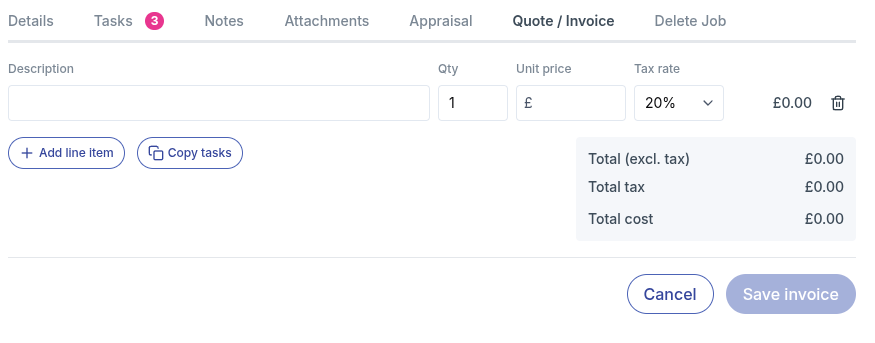
You can now create a quote or invoice straight from a job's Quote / Invoice tab. The job and customer are linked automatically, so it lives alongside the job.
Each invoice includes:
Your company details, address and VAT number
The customer's name, email and address
The job reference
Line items with quantity, unit price and VAT at 20% or 0% - Net, VAT and gross totals
Every document is numbered automatically and exports as a clean A4 PDF that you can download, print or email to the customer. Doing a few jobs for the same customer? Create one invoice from their customer profile and link up to 50 of their jobs to it.
Copy tasks - reduce doing this twice
This is the part we're most pleased with. In workauto, every job is already broken down into tasks:
"Replace front brake pads and discs", "Oil service", "Diagnose warning light".
Your team plans the job with those tasks and the technicians tick them off in TechView as they go. So why type them out again on the invoice? With Copy tasks, you don't. Open a new invoice, click Copy tasks, and every task on the job is added as a line item, in order.
All you have to do is add the prices. - Invoicing several jobs together? Every task from every linked job comes across. - Linked to another job after copying? Click it again and only the new tasks are added, so there are no duplicates. - Already started typing your own lines? They stay where they are, and the tasks are added below. What used to be five minutes of retyping is now one click and a quick check of the prices.
From Booking to invoice
Put it together and a job now runs from start to finish in workauto:
Book it in on the planner with the customer, vehicle and tasks.
Do the work in TechView. Technicians log their time, tick off tasks and update the status.
Invoice it with Copy tasks, add your prices and send the PDF.
Close it off with the Invoiced tag.
The Jobs Not Invoiced report catches anything that slips through. We've written a step-by-step guide that walks through the whole process: From job to invoice.
Already have invoicing in place?
That's fine. Invoicing in workauto is optional. If you'd rather keep using your current system, you can still upload the invoice PDF to the job's attachments or add the invoice number to the job notes. Either way, the Invoiced tag and the Jobs Not Invoiced report work just the same.
Get Started
Invoicing is available on every workauto account. Add your company details under Settings > Invoicing and you're ready to send your first invoice.
Set up invoicing , then copy tasks onto an invoice
Not using workauto yet? Start your 14-day free trial and see how much time you get back. For a step-by-step walkthrough, see the job to invoicing tutorial in our help docs:
https://docs.workauto.co.uk/category/workflow-from-job-to-invoice
Invoicing is included on every plan at no extra cost. Give it a try, and let us know what you think. Your feedback shapes what we build next.