Tuesday, September 22, 20264 min read
How to Use Reports in Workauto

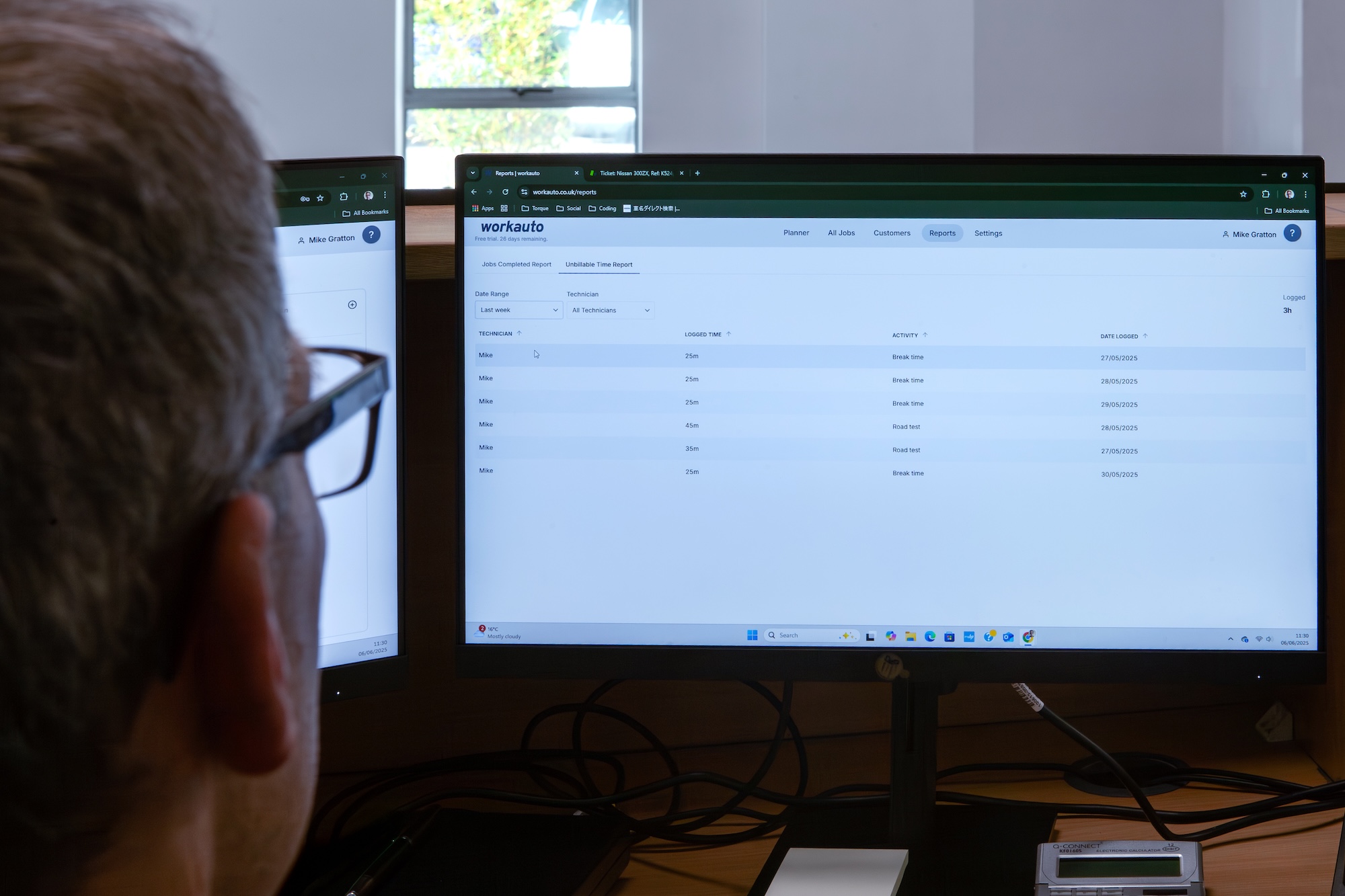
Running a garage without reports means most of what's happening only exists in your head, or in someone's memory of how a job went. Workauto's Reports section pulls that information together in one place, so you can see job performance, technician time, and customer reminders without having to open every job individually.
Why This Matters
A garage generates a lot of useful data just by running its day to day work, estimated hours, logged time, invoiced jobs, reminders sent. Most of it goes unused because there's no easy way to see it all together. Reports fixes that:
One place for the numbers. Job performance, technician time, and reminders all live under one section, not scattered across different screens.
Filter to what matters. Most reports can be narrowed by date range and technician, so you're looking at the period or person you actually care about.
Export what you find. Any report can be exported to a spreadsheet, respecting whatever filters you've applied, so the data goes wherever you need it next.
Walking Through the Reports Section
Here's how to get to your reports and pull the data you need:
Navigate to Reports. Find it in the main menu, as normal.
Choose a report type. Each report is available as a tab across the top, so you can move between them without leaving the section.
Apply your filters. Narrow by date range and technician where available, to focus on a specific period or team member.
Export if you need to. Click the export button, the download icon on the right, to send the current table view to a spreadsheet. The export respects whatever filters are currently applied.
That's the whole process. Pick a report, filter it, and export it if you need the data outside Workauto.
The Report Types
Jobs Completed Report A summary of all completed jobs within your chosen date range. It shows job reference, customer name, vehicle registration, estimated time, logged time, and the difference between the two. Use this to track how accurately jobs are being estimated and how much time technicians are actually spending per job. Filter by date range and technician to focus on specific periods or team members.
Jobs In Progress Report An up to date view of jobs that aren't yet complete but already have time logged against them. Useful for keeping an eye on larger jobs that span a significant period of time, so you can check progress without opening each one individually.
Jobs Not Invoiced Report Shows all completed jobs that haven't yet been invoiced, within a specified date range. Worth checking regularly to make sure no completed work is slipping through without being billed.
Unbillable Time Report A breakdown of all unbillable time recorded by technicians, including the activity type, such as car logistics or break time, and duration. This helps you understand how much workshop time is going on non billable activities, and where there might be room to improve.
Reminders Report Shows all MOT and service reminders in the system. By default it displays reminders sent this month, but the date filter can be adjusted to any range. There's also a toggle at the top to include reminders that haven't been sent yet, so you can check what's still upcoming.
What This Means for Running Your Garage
Individually, each report answers a specific question, how accurate your estimates are, what's still sitting unbilled, where unbillable time is going. Together, they turn the everyday data your garage already produces into something you can actually act on, rather than something that just disappears once a job's marked complete.
FAQs
Can I filter reports by both date range and technician? Most reports support filtering by date range and technician, so you can narrow the data down to a specific period, a specific person, or both.
How do I export a report? Click the export button, the download icon on the right of the report, to send the current table view to a spreadsheet. The export respects any filters you've applied.
Does the Reminders Report only show reminders that have already been sent? By default it shows reminders sent this month, but there's a toggle to also include reminders that haven't been sent yet.
What counts as unbillable time? Any time technicians log against non billable activities, such as car logistics or break time, rather than against a chargeable job.
Ready to see what your garage's data actually shows? Explore your reports and pull your first export.