Friday, September 18, 20265 min read
How to Add a Customer and Vehicle in Workauto

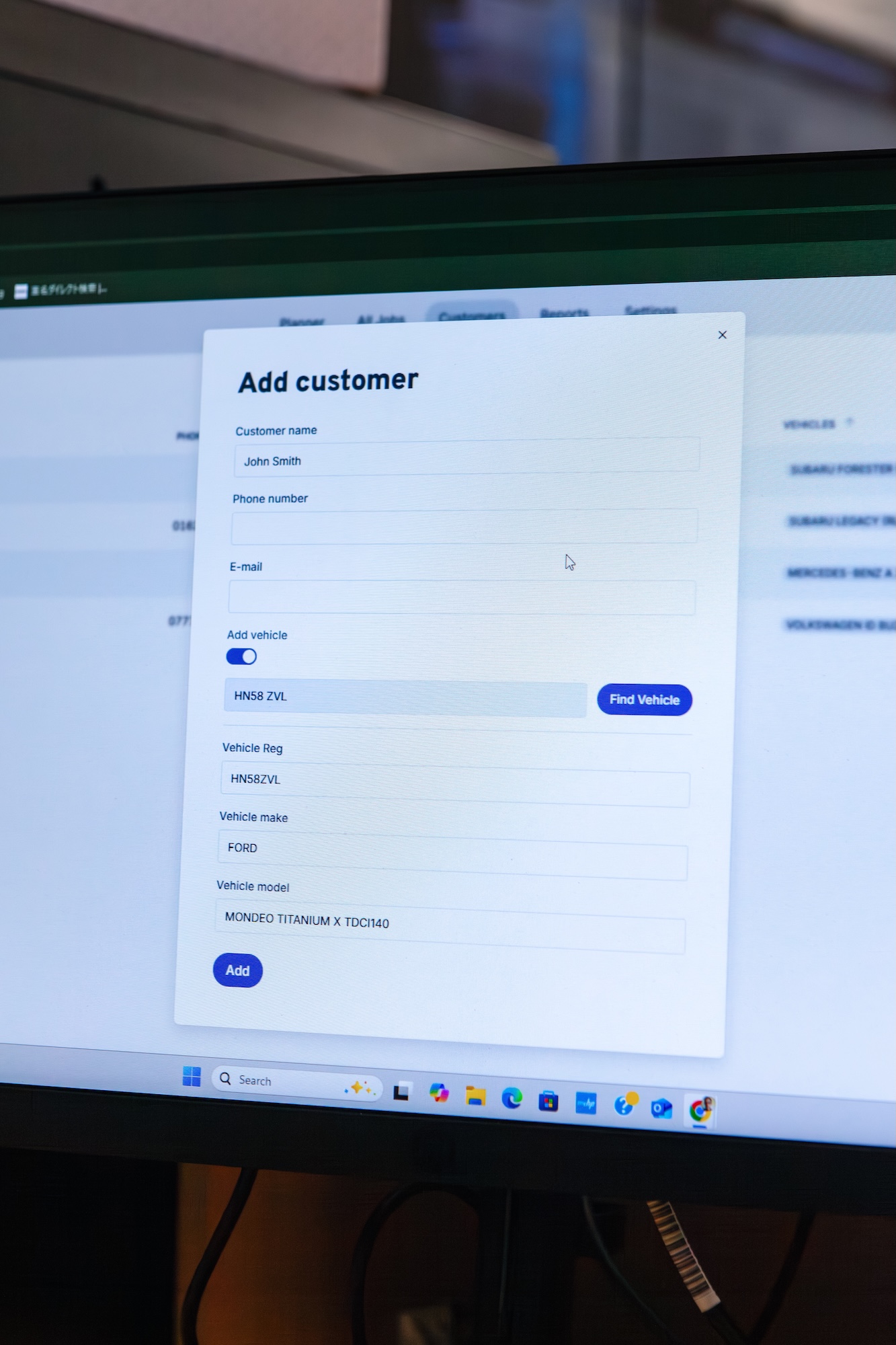
Adding a new customer shouldn't mean jumping between screens to get their details and their vehicle's details into the system. In Workauto, it's easy to put the customer and vehicle together, so you're not clicking back and forth to finish something that should take seconds.
Why This Matters
A lot of garage software treats customers and vehicles as two separate jobs: add the customer, save, then go and add the vehicle separately. It adds up over a busy week of walk-ins and phone bookings.
Doing it in one fixes that:
One screen, not two. Customer and vehicle details are captured together, so there's nothing to come back and finish later.
Less typing for UK garages. Reg plate lookup fills in the vehicle details automatically, rather than typing out make, model, and year by hand.
Nothing gets missed. Since the vehicle's attached at the point the customer is created, there's no separate step to forget.
Customers can have multiple vehicles attached.
Walking Through Adding a Customer and Vehicle
Here's what it looks like to add a new customer and their vehicle in Workauto:
Navigate to Customers. Find it in the main menu, as normal.
Click Add Customer. This opens the modal where both the customer and vehicle details are entered.
Enter the customer's details. Name, contact details, and anything else you'd normally capture. If you add an email and/or phone number you can alert them with service and MOT reminders down the line.
Add the vehicle. If you're in the UK, use the automated vehicle lookup tool, enter the registration and the vehicle details are populated for you automatically.
Save. The customer and their vehicle are created together, ready to use straightaway, no separate step needed.
That's the whole process. One modal, one save, and both records exist.
Adding Multiple Vehicles to One Customer
Plenty of customers bring in more than one car, a partner's runabout alongside their own, or a small fleet if they're a local business. Workauto doesn't limit a customer record to a single vehicle. Once a customer's set up, you can attach a second, third, or fourth vehicle to the same record rather than creating a separate customer each time.
This matters more than it sounds. If every vehicle needs its own customer record, you end up with the same person's details typed in multiple times, and no single view of everything they've had done across all their cars. Keeping vehicles grouped under one customer means their full history, and every reminder or booking tied to it, sits in one place.
Setting Up Service and MOT Reminders While You're There
Since a customer's email and phone number are already captured in this modal, it's worth setting up their service and MOT reminders at the same time rather than coming back to it later. Reminders are set against the vehicle, so once you've added the car, you can turn on email or SMS reminders for its next service or MOT in the same sitting.
It's a small step that pays off later. A customer who's reminded automatically when their MOT is due is far more likely to rebook with you than one who's left to remember it themselves, and it's one less thing to set up separately once the workshop gets busy.
Built to Fit a Busy Front Desk
You don't need to slow down to get a new customer into Workauto properly. Whether it's a walk-in booking on the spot or a phone call you're taking down details for, the customer and their vehicle go in together, in the time it takes to have the conversation.
You're also not tied to doing this from the Customers screen. If you're already booking in a job, you can add a brand new customer and vehicle directly from the Add Job modal, no need to back out, create the customer first, then come back to book the job. It's the same one-screen approach, just started from wherever you happen to be working.
FAQs
Do I need to add the customer and vehicle separately? No. Both are created from the same modal, so there's no second step to add the vehicle afterwards.
Does the vehicle lookup tool work outside the UK? No, it's UK-specific. Outside the UK, vehicle details can still be entered manually in the same modal.
What details does the vehicle lookup fill in automatically? Entering the registration pulls through the vehicle's details automatically, saving you from typing them in by hand.
Can I edit the vehicle details after lookup? Yes. Anything filled in automatically can still be edited before you save, in case anything needs correcting.
Can I add more than one vehicle to the same customer? Yes. A customer record isn't limited to a single vehicle, so you can attach as many as they own to the one record.
Can I set up MOT and service reminders when I add the vehicle? Yes. Since the customer's contact details are already entered, you can turn on email or SMS reminders for that vehicle in the same sitting.
Do I have to go to the Customers screen to add someone new? No. You can also add a new customer and vehicle directly from the Add Job modal, so you don't need to leave the job you're booking in to do it.
Ready to see how quick it is? Add your first customer and try the vehicle lookup for yourself.